
Woola - AI Photo Enhancer
XL MobilePhotography
4.182.00 Reviews
- Version
- 1.9.1
- Installs
- 500.00K
- Age Rating
- Everyone
Screenshots


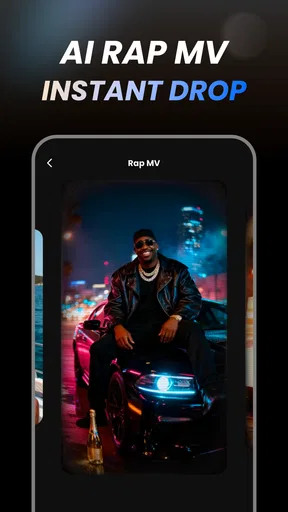



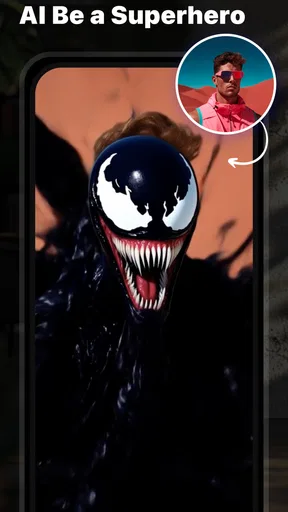
Our Review of Woola - AI Photo Enhancer
 Analysis by Appyee
I tend to reach for Woola - AI Photo Enhancer when I have a photo that feels almost worth keeping but needs a quick lift. It is a photography app from XL Mobile, and the appeal is its focus on turning a selected image into something more lively without asking me to learn a full editing workflow. The idea is convenient, though the results still depend on the picture and on what looks natural to me.
Where a quick edit can get stuck
The first decision is not which slider to move; it is whether the image is a good candidate for automatic enhancement. A dark portrait, a slightly soft travel shot, and a photo with motion blur are very different problems. AI adjustments may make a dim image easier to see, but they cannot reliably restore detail that the camera never captured. I get better results when I start with the clearest original available rather than expecting a dramatic rescue from a tiny or heavily compressed copy.
That distinction matters if you are choosing between this app and a traditional photo editor. Woola’s appeal is a quick, guided result, while a manual editor is usually the better fit when I want precise control over exposure, color, cropping, or a particular look. For a casual image I might share with friends, speed can matter more than exact control. For a portfolio image or a print I care about, I would inspect the result closely and keep a copy of the original.
Small checks before editing
Woola is free to download and is rated for Everyone. It has an average rating of 4.5 from 224 ratings, and has passed 50K+ installs. It was released on Apr 29, 2025; version 1.6.0 requires Android 7.0 or later. Those details make it easy to judge whether it is relevant to your device, but I would still check that the phone has enough free space to work comfortably and that the photo I want is actually available in the gallery I am browsing.
If a picture does not appear, I would first check the gallery selection and whether I am looking in the right album, rather than assuming the editing tool is broken. If the app seems unresponsive, I would close and reopen it, then try one image instead of a large selection. That simple test can help separate a problem with a particular file from a broader issue. I would also avoid deleting the source photo until I have checked the saved result.
There are in-app purchases priced from $5.99 to $299.99 per item, so I would explore the free experience before deciding whether any paid option is worth it for my needs. The range is wide enough that I would read the purchase screen carefully and confirm what is being offered before tapping through. If I only need to improve an occasional photo, paying may not make sense; frequent use could change that calculation, depending on the specific option and how often I rely on it.
Recovering a workflow without losing the original
My safest routine is to choose one image, make the edit, and compare the finished version with the source before moving on. I look for changes that help the subject without making skin, skies, or fine textures look oddly processed. If the result feels too strong, I would rather return to the original and try a different image than keep stacking edits on a version I no longer trust.
For a busy day, this kind of one-photo-at-a-time check is useful even when handling several pictures. A batch-style workflow can save effort when the images have similar lighting and need similar treatment, but mixed photos rarely benefit from identical adjustments. I would group similar shots first, then review each saved image. That small pause is less convenient than accepting everything at once, but it helps avoid discovering later that a good portrait has been pushed too far.
A realistic example: after a family outing, I might have one indoor group photo that looks a little dim and a bright outdoor shot with completely different lighting. I would try the indoor image first, judge whether faces and background details remain believable, and handle the outdoor image separately. If the first result is useful, I can decide whether the app suits the rest of that set. If it is not, I have learned that this photo needs a more controlled edit without risking the whole camera roll.
When a phone or photo issue may be involved
Not every frustrating result points to the app. A source image that is out of focus, poorly lit, or already altered by another editor can limit what any automatic tool can do. A full device, an interrupted session, or a file that is not available where I expect it can also complicate a simple task. I would test a different, unedited photo before drawing a conclusion about the app itself.
There is also a difference between a preview that looks appealing on a phone and an image that holds up when viewed larger. I would zoom in on important details before sharing or using a picture for something more demanding. That check is especially useful for faces, hair, and text in the background, where smoothing or sharpening can become distracting. For quick social sharing, a small imperfection may be perfectly acceptable; for a keepsake, I would be more selective.
First Impressions and User Interface
Upon launching Woola - AI Photo Enhancer, I was greeted with a sleek and intuitive interface. It's designed to be user-friendly, even if you're not exactly a tech wizard. The main screen is uncluttered, with easy access to your gallery and enhancement tools. No confusing menus or overwhelming options here, just straightforward functionality.
Getting started is as simple as selecting a photo from your gallery. The app then provides a range of enhancement options that are all powered by AI. It's like having a professional photo editor in your pocket, ready to work its magic at a moment's notice.
Features That Stand Out
One of the standout features of Woola is its AI-driven enhancement. The app analyzes your photo and suggests edits that can improve everything from brightness to sharpness. I was particularly impressed by how it handled low-light photos, bringing out details that I didn't even know were there.
Another cool feature is the batch processing capability. If you're like me and have a ton of photos needing a little TLC, this is a game-changer. You can select multiple images, and Woola will enhance them all at once, saving you both time and effort.
For those who love sharing their photos on social media, Woola offers direct sharing options. Once your photo is enhanced, you can post it straight to your favorite platforms with just a few taps. It's a seamless integration that I found incredibly convenient.
Performance and Reliability
In terms of performance, Woola runs smoothly without any noticeable lag. The enhancements are applied quickly, and I didn't experience any crashes during my testing. It's reliable and gets the job done without any fuss.
The app also respects your device’s resources. It doesn’t gobble up battery life or storage, which is always a plus in my book. You can enhance away without worrying about draining your phone in the process.
Are There Any Drawbacks?
Now, no app is perfect, and Woola is no exception. While the AI enhancements are impressive, they may not always match personal preferences. Sometimes I found myself tweaking the results manually to get them just right, especially with more nuanced edits like color grading.
Additionally, the app is free to download, but some features are locked behind a premium subscription. While the free version offers plenty of functionality, you might find yourself tempted to upgrade to access all of Woola's capabilities.
Final Thoughts
Overall, Woola - AI Photo Enhancer is a fantastic tool for anyone looking to up their photography game without investing in expensive software or spending hours learning complex editing techniques. It's straightforward, effective, and a great companion for everyday photo enhancement tasks.
Whether you’re an aspiring photographer or just someone who wants to make their vacation photos pop, Woola has something to offer. It's a handy app that delivers on its promise and makes photo editing accessible to everyone. So why not give it a try and see your photos in a whole new light?
Who I would recommend it to
I would suggest trying it if your usual photo routine stops at taking a picture and sharing it. Woola makes most sense for someone who wants a quick improvement without learning how to balance several editing controls. It can suit a parent sorting everyday family photos, a traveler choosing a few images to send home, or someone who wants a brighter profile picture without turning the task into a project.
I would be more cautious if you shoot in a deliberate style and need every image to match a careful color treatment. Automatic suggestions can be a useful starting point, but they are not a substitute for repeatable, fine-grained editing. If consistency across a set matters more than convenience, a manual editor may be the better primary tool, with Woola reserved for quick experiments.
Making the most of the photo effects
The app’s store summary also points to playful possibilities beyond ordinary cleanup, including a time-machine effect and one-tap lip-sync singing from a photo. I would treat those as entertainment rather than as faithful restoration or a serious portrait workflow. They may be a fun way to make a family chat more lively, but the appeal depends on the source image and on whether the person in it is comfortable being used in that way.
A useful habit is to decide what a photo is for before editing. If I am making a silly clip for a small group, a stylized result can be the point. If I am improving a picture for a keepsake, I would prioritize a natural appearance and compare the finished image against the original. Keeping those goals separate stops a novelty effect from becoming an unwanted change to a photo I meant to preserve.
Another practical tip is to work from the least altered copy I have. Repeatedly saving and re-editing an already processed image can make artifacts more obvious, especially around edges and texture. I would keep one untouched version, make a separate edited copy, and avoid judging the result only from a small thumbnail. That gives me an easy way back if the enhancement looks harsher on a larger screen.
Choosing between convenience and control
Compared with the usual manual editors in photography, Woola is best understood as a shortcut, not an all-purpose darkroom. Its automated approach is attractive when I want a quick first pass, while traditional tools give me more say over exactly what changes. Neither approach wins for every photo: automation reduces effort, but manual controls are more dependable when a subtle adjustment or a consistent look is important.
I would also separate enhancement from organization. The app may help me prepare selected pictures, but I would not make it the only place I keep memories or assume an edited image has replaced its original. My own camera roll or a separate backup routine should remain the home for the source files. That is a small but worthwhile safeguard whenever an editing app becomes part of a regular photo habit.
My practical verdict
For someone deciding whether to install it, the key question is how often a fast, automatic edit would save time. XL Mobile’s app is approachable and has a 4.5 average, but a rating cannot tell me whether its style matches my taste; I would test it on an ordinary photo I can afford to experiment with. It is free to start, and the age rating is Everyone, so it is broadly accessible, while purchases make it sensible to pause before committing money.
I would skip it as my main editor if I need precise control, dependable uniformity across a professional set, or guaranteed recovery of detail from a very poor source. I would recommend giving it a try if I want quick improvements and am willing to inspect the result rather than accept every automatic change. The best use is modest: let Woola make a promising photo easier to share, keep the original, and move to a more controlled tool whenever the image deserves closer attention.
Verdict
Strengths of Woola - AI Photo Enhancer
- Impressive photo enhancement quality.
- User-friendly interface for all ages.
- Quick processing time for edits.
- Variety of filters and effects.
- Supports high-resolution output.
Limitations of Woola - AI Photo Enhancer
- Requires internet for full features.
- Subscription for premium options.
- Occasional lag on older devices.
- Limited free version capabilities.
- No batch processing for photos.
Similar Picks in This Category
View All
Google Photos
Google LLC4.4

Gallery
Google LLC4.2

Picsart AI Photo Editor, Video
PicsArt, Inc.3.9

B612 AI Photo&Video Editor
SNOW Corporation4.1

BeautyPlus-Selfie Photo Editor
PIXOCIAL TECHNOLOGY (SINGAPORE) PTE. LTD.4.5

Remini - AI Photo Enhancer
Bending Spoons4.1
Frequently Asked Questions
What is Woola - AI Photo Enhancer?
Woola - AI Photo Enhancer is an advanced photo editing application that utilizes artificial intelligence to improve image quality. It offers features like noise reduction, color correction, and sharpening to enhance your photos effortlessly. The app is designed for both amateur and professional photographers seeking easy-to-use but powerful editing tools.
Is Woola - AI Photo Enhancer free to use?
Woola offers a free version with basic features, which is suitable for casual users. For advanced functionalities such as batch processing and high-resolution exports, a premium subscription is required. This subscription unlocks all features and provides an ad-free experience, making it ideal for those frequently editing photos.
What are the key features of Woola - AI Photo Enhancer?
Key features of Woola include AI-powered noise reduction and sharpening, color correction, and auto-enhance options. The app also offers batch processing for editing multiple images simultaneously, a user-friendly interface, and one-tap enhancements. These features are designed to provide users with professional-grade photo editing capabilities.
How does Woola - AI Photo Enhancer ensure user privacy?
Woola takes user privacy seriously, ensuring all photo processing is done locally on your device. This means your images are not uploaded to any servers, safeguarding your personal data and photos. Additionally, the app complies with privacy regulations, providing a secure environment for photo editing.
Can Woola - AI Photo Enhancer be used offline?
Yes, Woola can be used offline, which allows you to edit your photos without an internet connection. This feature is particularly useful for users who travel frequently or are in areas with limited connectivity, ensuring you can enhance your images anytime and anywhere.
